Never run an ad before? Set up your Facebook Page and ad account from zero
No Page, no ad account, no idea where to start? This guide walks you through every step in plain language, from your first Page to a ready-to-use ad account, in about 30 minutes.
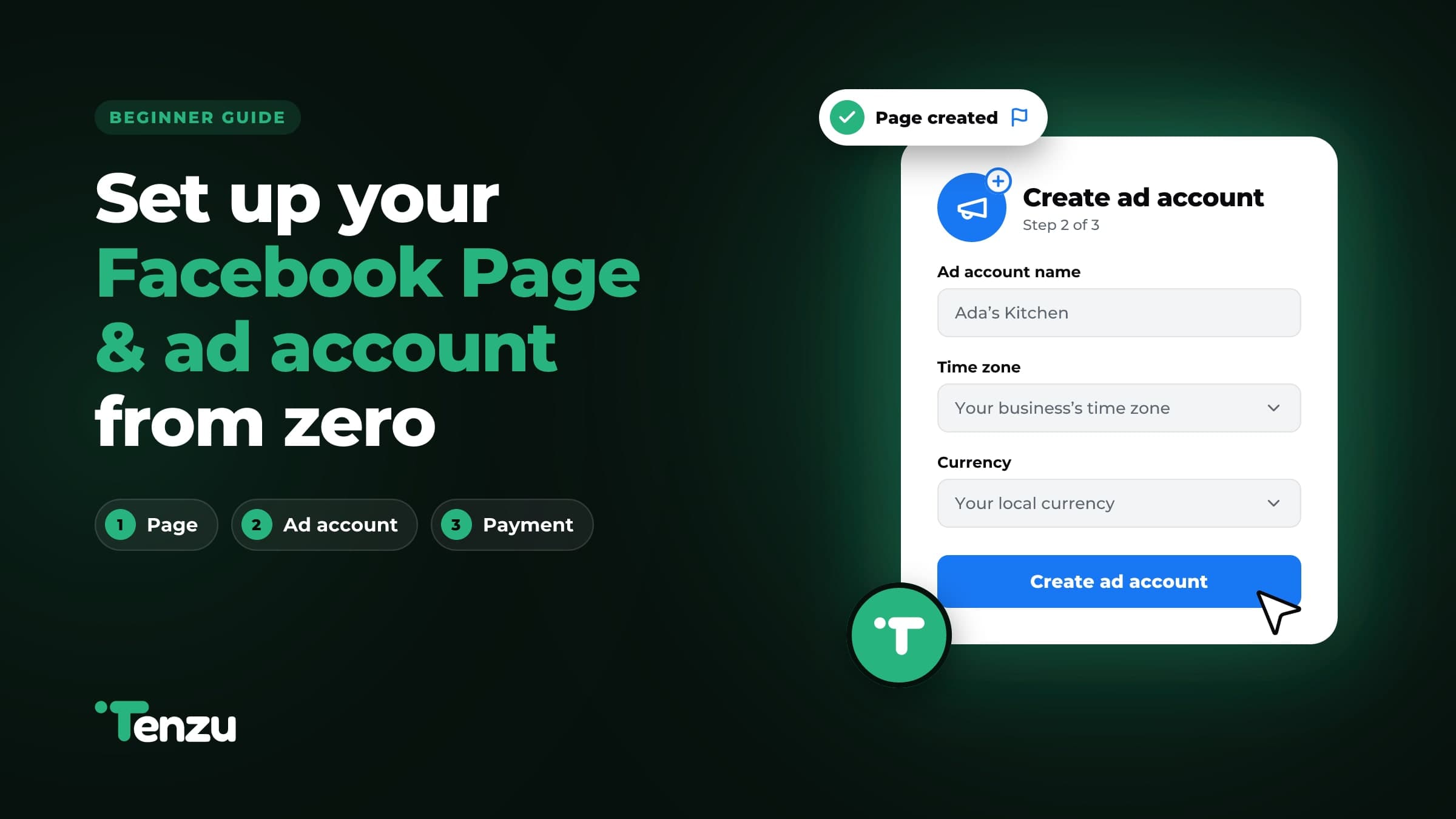
If you’ve never created a Facebook Page or an ad account, you’re not behind. Most small business owners have never had to. This guide assumes you’re starting from nothing and explains each step as you go, with a link straight to the right Facebook screen for each one. Set aside about 30 minutes. By the end you’ll have three things: a Page for your business, an ad account to run ads from, and a way to pay for them.
What you need before you start
- A phone number and an email — that you check often. Meta sends codes and alerts to both.
- Your business name — written the way you want customers to see it.
- A logo or a clear product photo — for your Page’s profile picture.
- A bank card that works online — for paying Meta when your ads run.
- About 30 minutes — on a phone or computer. A computer is easier for Steps 3 and 4, but a phone works.
The pieces, explained simply
Meta uses a few words that sound alike. Think of a shop in a market:
- Your personal profile — is you, the owner. You log in with it, but customers never see it when they look at your business.
- Your Page — is the shopfront. It has your business name, photos and contact details, and every ad appears under its name.
- Your ad account — is the cash register for advertising. Your ads live there, and so does the card that pays for them.
- Your business portfolio — is the folder that holds the Page and the ad account together. Meta used to call it “Business Manager”, so you may still see that name in older guides.
Step 1: Get your personal Facebook account ready
Every Page and ad account is run by a real person, so you start with your own Facebook account. If you already use Facebook, skip to number 3.
- Open the sign-up page — at facebook.com/r.php, or download the Facebook app and tap Create new account.
- Use your real name and date of birth — Meta checks these when you start advertising. Accounts with nicknames or business names as the person’s name are often blocked from running ads.
- Turn on two-factor authentication — Open Password and security in Accounts Center, tap Two-factor authentication and follow the steps. It adds a code to your login and is the best protection against your account, and your ads with it, getting hacked or locked.
- Add a profile photo of yourself — A real, active-looking profile gets restricted less often than an empty one made five minutes ago.
Step 2: Create your Facebook Page
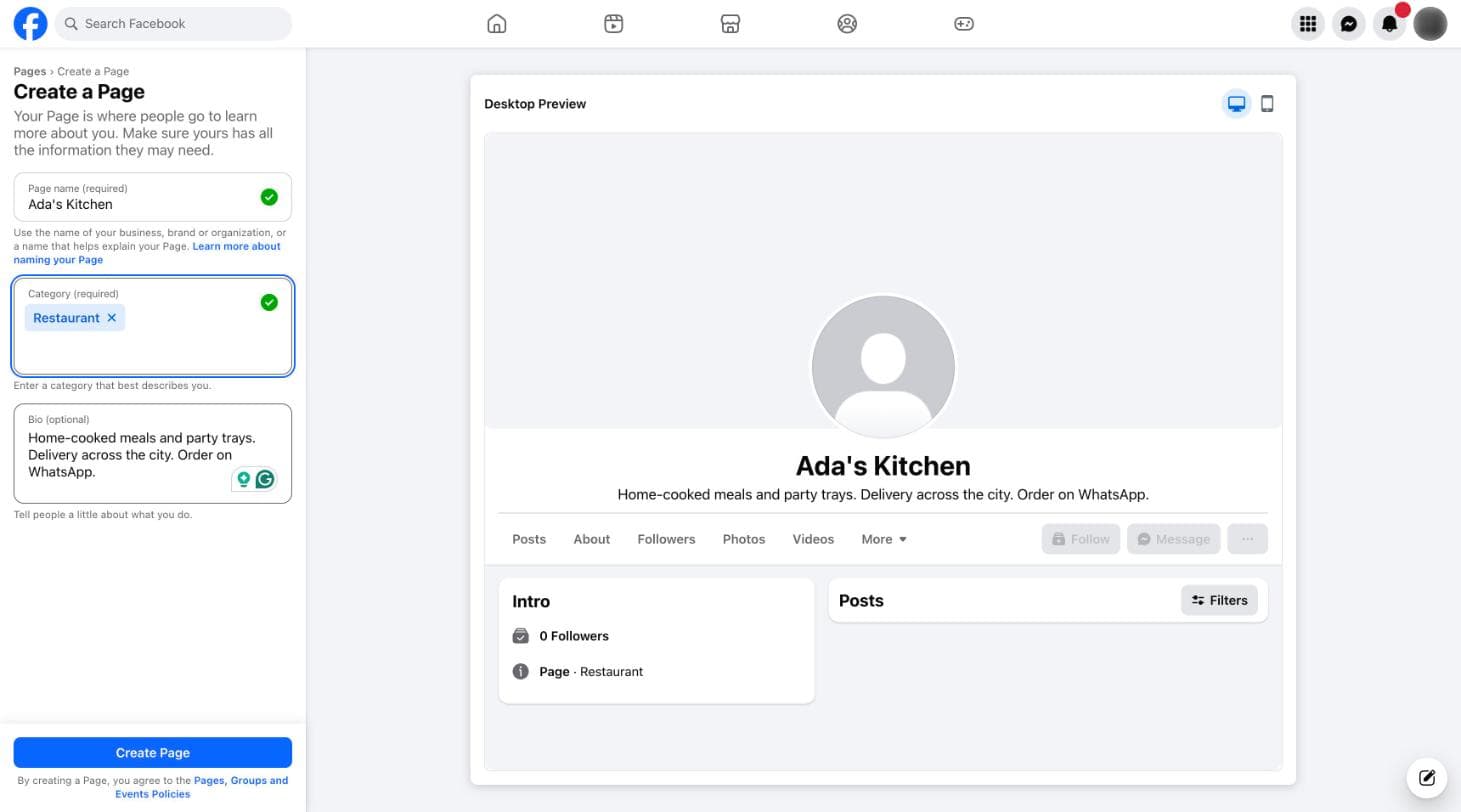
- Open the Page creator — While logged in, go to facebook.com/pages/create. In the app, tap the menu (☰), then Pages, then Create.
- Name it after your business — Use the name customers already know you by, like “Ada’s Kitchen”, not “Ada Food Business Page”.
- Pick a category — Start typing what you do (“Clothing store”, “Bakery”, “Beauty salon”) and choose the closest match.
- Write a short bio — One or two lines: what you sell, where you deliver, and how to order. For example: “Handmade bags. Delivery across the city. Order on WhatsApp.”
- Tap Create Page, then add your contact details — Your phone number, email and location if you have a shop. These help people trust you before they message.
- Add a profile picture and a cover photo — Your logo or best product photo for the profile picture; a wider photo of your products or shop for the cover.
- Connect WhatsApp (optional, but worth it) — On your Page, open Settings, then Linked accounts, then WhatsApp, and enter your business number. Facebook sends a code to WhatsApp to confirm it. Now ads can send customers straight into a WhatsApp chat with you.
- Make your first post — A photo of a product with its price. A Page with nothing on it looks abandoned, and people check before they buy.
Step 3: Create your business portfolio and ad account
- Create your business portfolio — Go to business.facebook.com and log in with the same personal account. If it asks you to create a business portfolio, enter your business name, your name and your business email, then tap Submit. Check your email for a confirmation link and tap it.
- Open your ad accounts list — In Meta Business Suite, tap Settings at the bottom of the left menu, then Accounts, then Ad accounts. If you have more than one portfolio, pick the one you just made. (Your home screen may also show a “Create an ad account” shortcut. It leads to the same form.)
- Tap Add, then Create a new ad account — Give it a simple name, like your business name.
- Choose your time zone — Pick the one where your business is, so “today’s results” line up with your day.
- Choose your currency — Pick the currency you’ll actually pay in, usually your local one. Your budgets and results will all show in it.
- Say it’s for your own business — When asked who the ad account is for, choose your business portfolio, not another business or client.
- Give yourself full control — When it asks who should have access, choose yourself and switch on full control. Without this, you won’t see the account later.
Double-check the currency and time zone before you tap Create. Meta doesn’t let you change either one later. The only fix is a brand-new ad account.
Last, put your Page in the same folder: in Settings, open Accounts, then Pages, tap Add, choose Add a Page, and pick the Page you made in Step 2. Now your ads can run under your Page’s name.
Step 4: Add a way to pay
- Open billing — Go to Billing and payments and pick your new ad account at the top.
- Tap Add payment method — A debit or credit card that works for online payments is the most common choice. Some countries have other local options, and Meta shows you what’s available where you are.
- Enter your card details and save — Your bank may send a code or ask you to approve the payment in its app. That’s normal.
- You only pay for what runs — Meta charges your card as your ads spend, up to the budget you set. No ads running means no charges.
- Start small — You don’t need a big budget to learn. A small daily amount for a week tells you plenty.
- Your ad money goes to Meta — If you use a tool like Tenzu to create and track ads, the tool never holds your ad budget. You pay Meta directly.
Common snags, and what to do
- “Your ad account has been restricted” — This often happens to brand-new accounts. Open Account Quality, read the reason, and tap Request review. Using your real name and details everywhere helps these clear up faster.
- Card declined — Check that your bank allows online and international payments on the card. Many banks block them by default; your banking app or a quick call can switch it on.
- “No ad accounts found” when connecting a tool — Make sure you finished Step 3 and gave yourself full control of the ad account, then try connecting again with the same Facebook login.
- Your Page doesn’t show up — Check that you added the Page under Settings → Accounts → Pages in Meta Business Suite, and that you’re logged in to the personal account that created it.
- Wrong currency or time zone — Create a new ad account with the right settings and stop using the old one. It’s annoying, but it only takes a minute.
- Locked out of your account — Go to facebook.com/hacked if you think someone else got in, or use Forgotten password on the login screen if you just can’t get in.
What to do next
You now have everything Meta needs to run an ad. Before you spend anything, take one good photo of your best-selling product. Then read how to turn one phone photo into five ad variations and how to tell if your WhatsApp ad actually made a sale. You don’t need to be an expert. You just need to start small, watch what brings in real orders, and do more of that.
- Getting started
- Facebook Page
- Ad account